Install the app
Do this on every Mac in the studio that plugs in drives or cards.
Download the right file. Apple Silicon is for M1, M2, M3 and M4 Macs. Intel is for older Macs. Not sure? Apple menu → About This Mac and look at Chip.
Open the downloaded
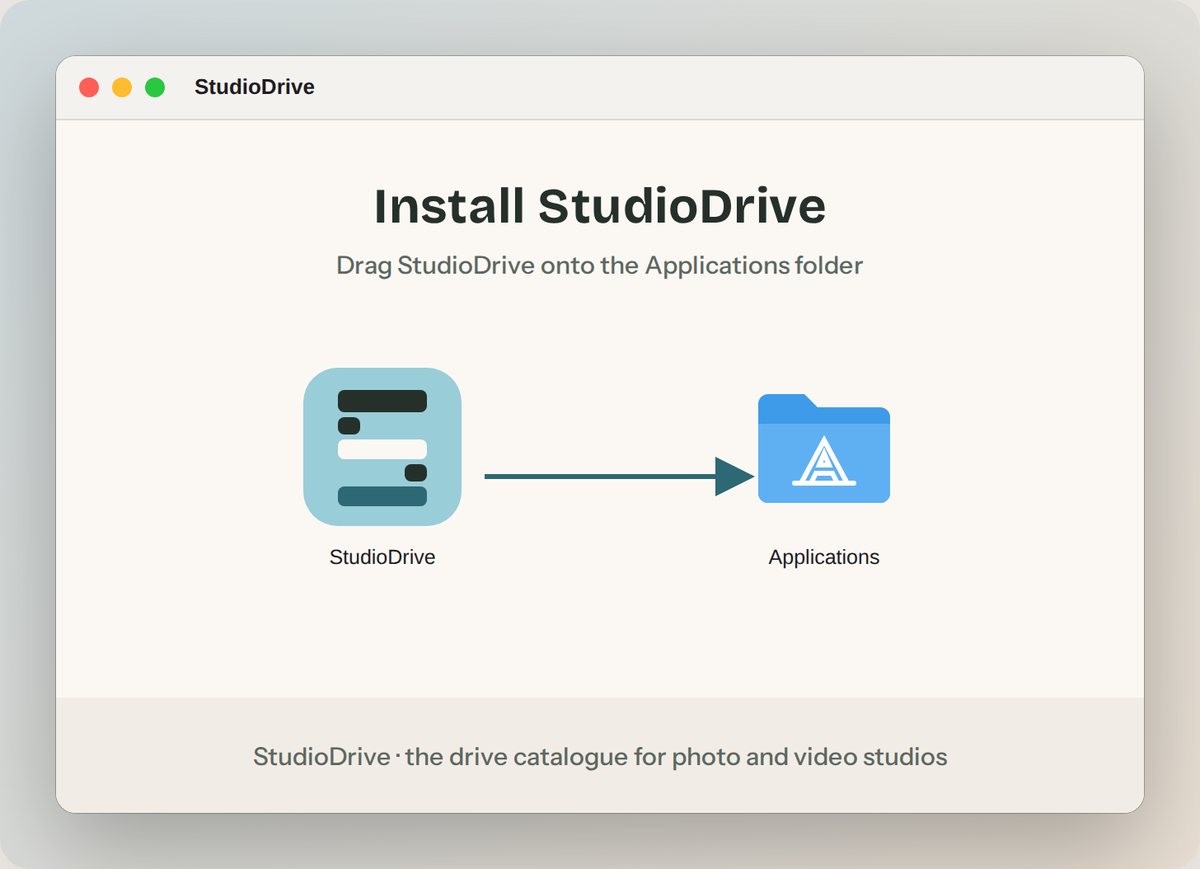
StudioDrive-Mac-….dmgfrom your Downloads folder.Drag the StudioDrive icon onto the Applications folder.
Eject the installer: in Finder's sidebar, click the eject button next to StudioDrive.
Open it the first time
macOS checks new apps from outside the App Store. You only do this once per Mac.
Open Applications and double-click StudioDrive.
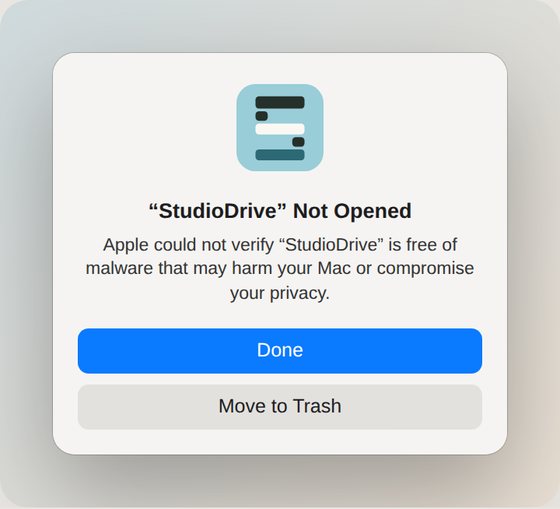
If macOS says "StudioDrive" Not Opened, click Done. Do not click Move to Trash.
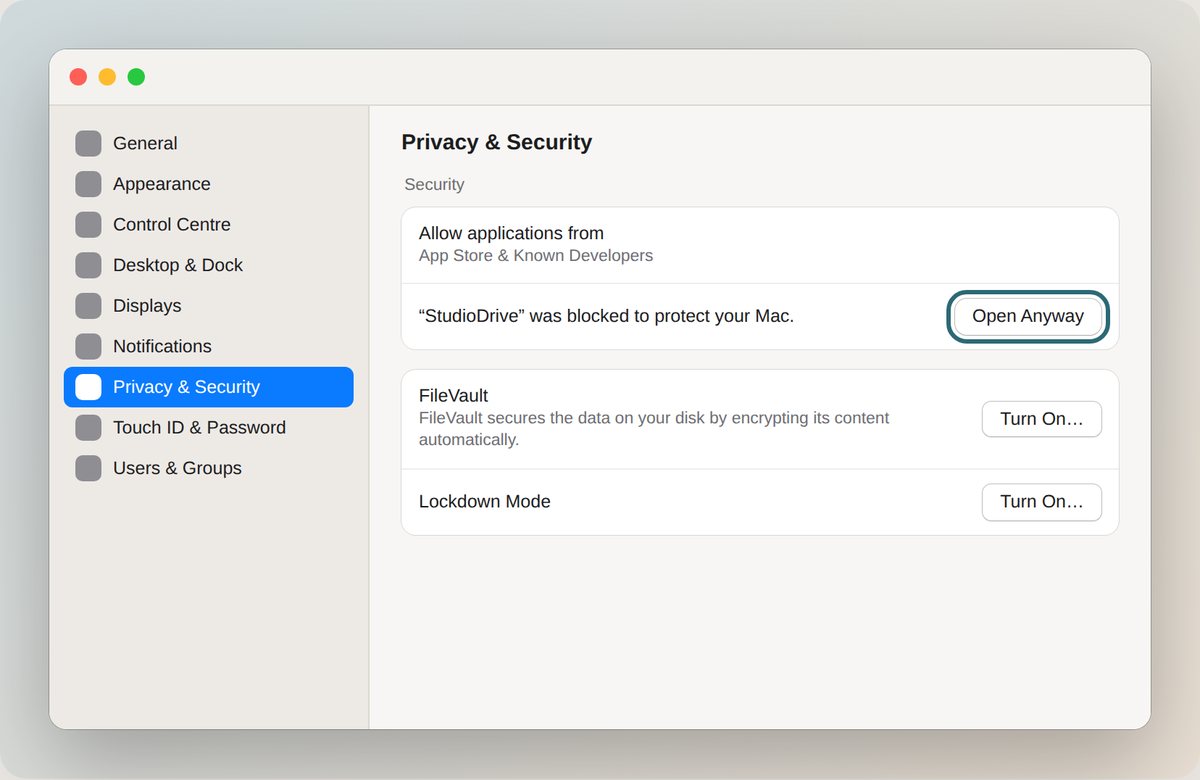
Open System Settings → Privacy & Security, scroll down to Security, and click Open Anyway next to "StudioDrive was blocked".
Enter your Mac's password or use Touch ID, then click Open Anyway once more. StudioDrive opens, and macOS won't ask again.
On macOS 14 Sonoma or older it's quicker: right-click StudioDrive in Applications, choose Open, then Open again.
StudioDrive opens in its own window and puts a small icon in the menu bar. Closing the window keeps it running in the menu bar, so drives are still watched and copies keep going.
Create your studio
One account for the whole studio. Every Mac and phone signed in to it sees the same drives and history.
First person in the studio
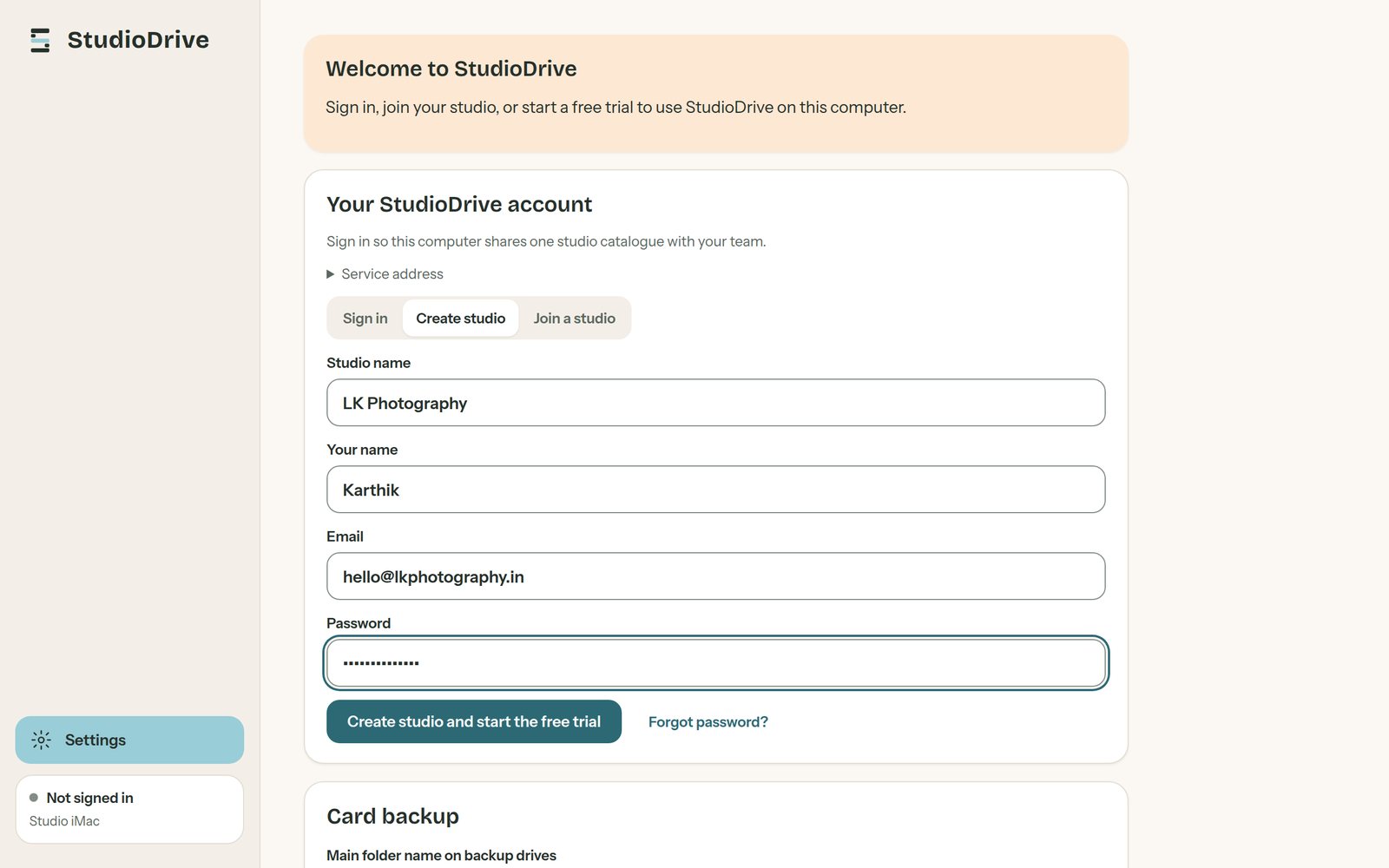
Choose Create studio. Enter the studio name, your name, email and a password. Your 7-day free trial starts straight away.
Everyone else
Choose Join a studio and type the four-letter studio code from the owner's Settings screen, with your own email and password.
Already have an account and adding another Mac? Choose Sign in with the same email.
Allow drive access
macOS keeps apps away from your drives until you say yes. StudioDrive needs to read them to list files and back up cards.
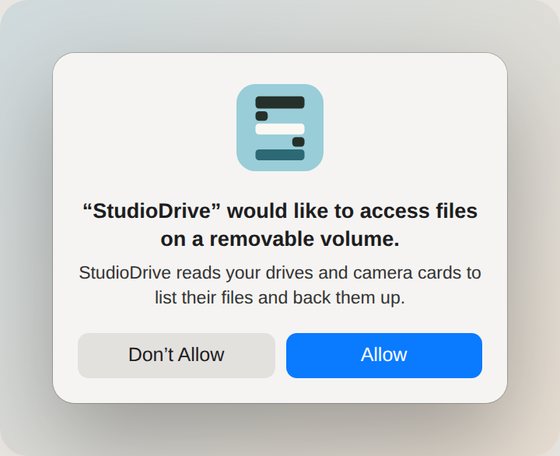
Files on removable volumes
The first time a drive or card is plugged in, macOS asks once. Click Allow.
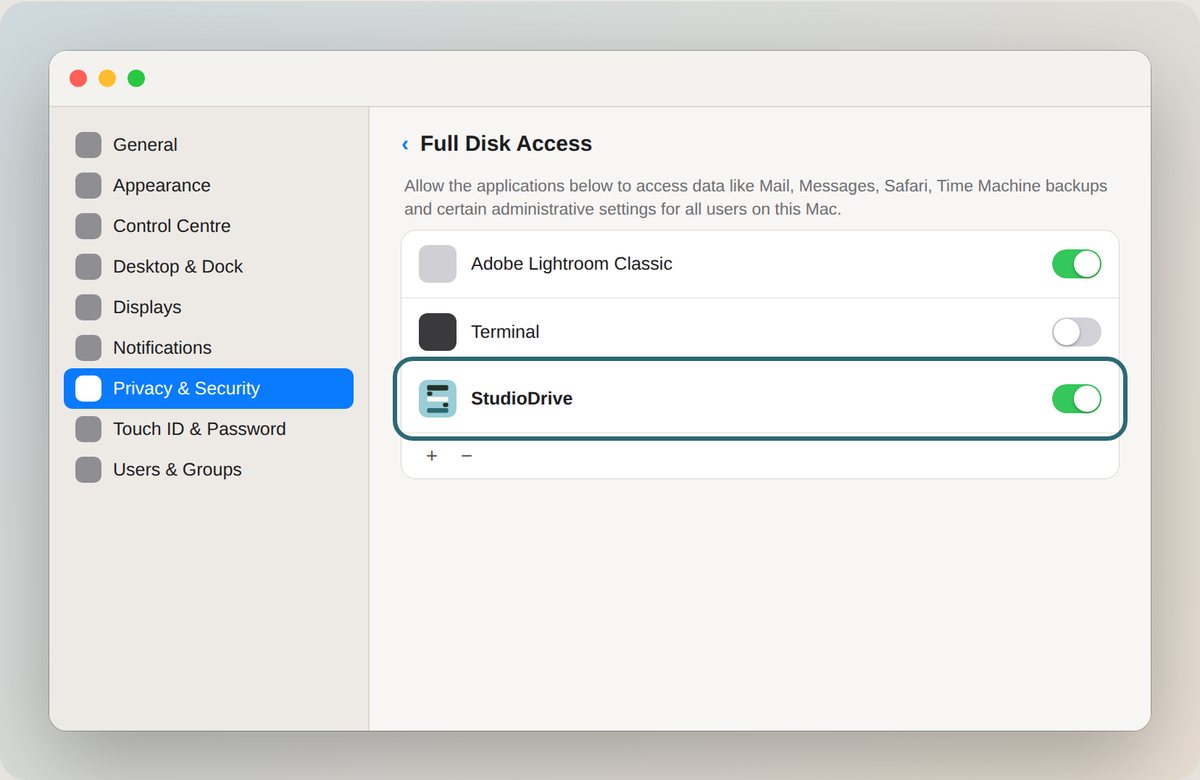
Full Disk Access
Without this, macOS can quietly stop StudioDrive from reading some drives, and they show Blocked by macOS or 0 files.
Open System Settings → Privacy & Security → Full Disk Access.
Click + at the bottom of the list and enter your Mac's password.
Choose Applications → StudioDrive → Open.
Make sure the switch next to StudioDrive is on.
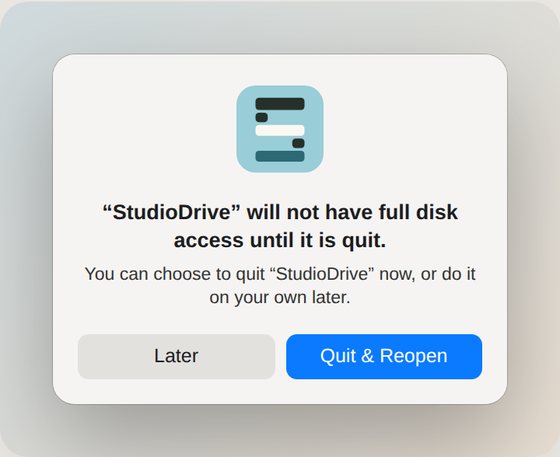
When macOS asks, click Quit & Reopen.
Other questions macOS may ask
| macOS asks about | When, and what to do |
|---|---|
| Network volumes | Only if you use a NAS or a shared drive. Click Allow. |
| Desktop, Documents or Downloads | Only if you add folders from this Mac in Settings. Click Allow. |
| Control "System Events" | Only when you use Shut down after a copy. Click OK. |
What StudioDrive does with this access. It reads drives to list their files and copies cards to your backup drives. It never deletes, moves or renames your files, and it never writes to a camera card. Your photos and videos are not uploaded anywhere.
Add your drives
There is nothing to set up. Plug a drive in and StudioDrive starts reading it.
Plug in each drive once. A full 8 TB drive takes a few minutes to read the first time. After that, StudioDrive keeps it up to date as files change.
Open All drives, click the drive, and give it a label such as LK-ARCH-01 and a place such as Studio rack, shelf A.
Write the same label on a sticker on the drive itself, so the name in the app always matches the drive on the shelf.
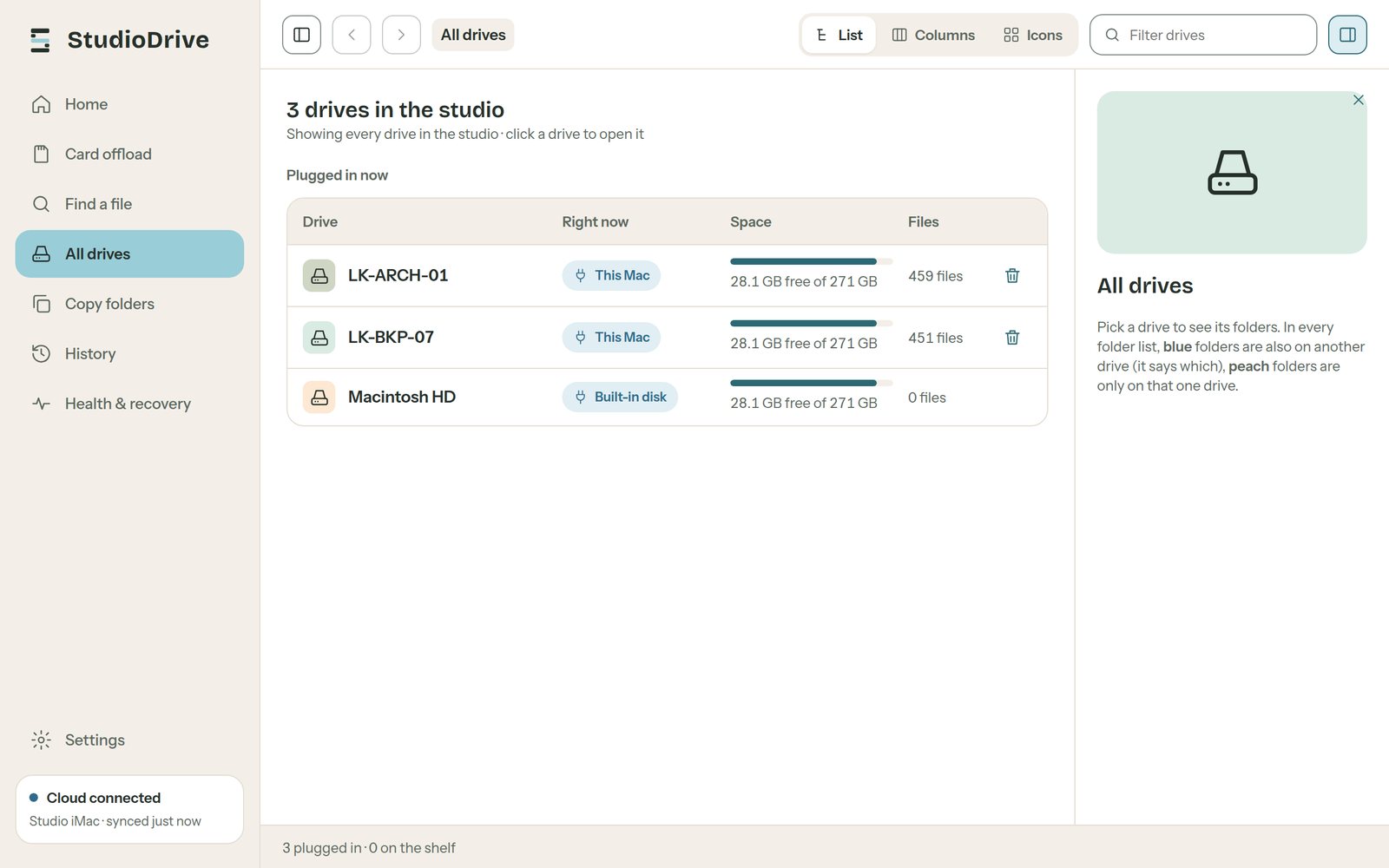
Each drive gets one small hidden file, .atlas.json. That is how StudioDrive recognises the drive on any Mac, even after it's renamed. Please don't delete it.
Back up a card
The card goes to two drives at once, then every file is read back and checked.
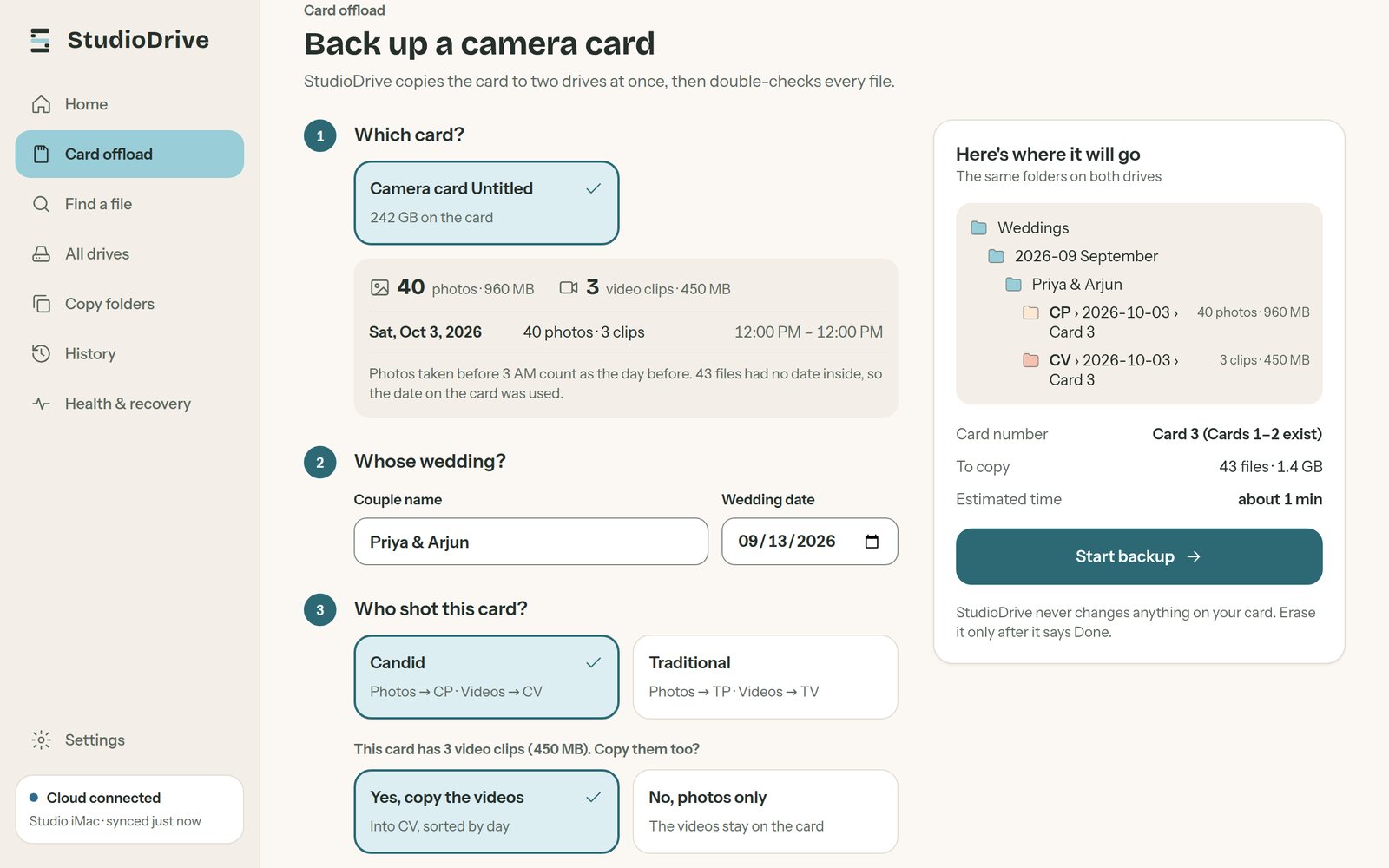
Insert the card. StudioDrive shows Camera card is in on Home. Click Back up this card.
Type the couple's name and the wedding date. Spell the name the same way every time.
Choose who shot the card, Candid or Traditional, and whether to copy the video clips too.
Tick your two backup drives. The right side shows exactly which folders will be made, and the card number is worked out for you.
Click Start backup.
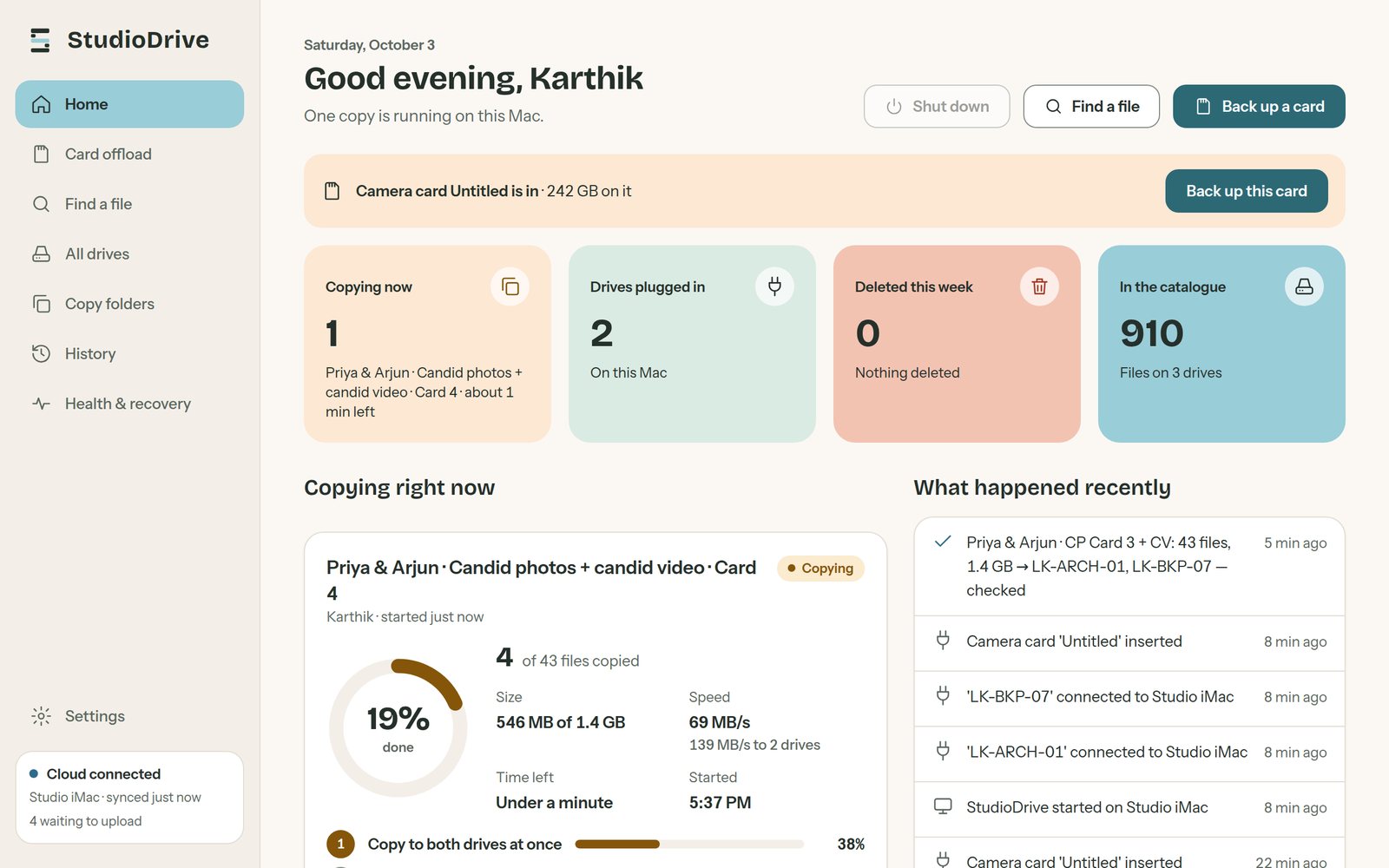
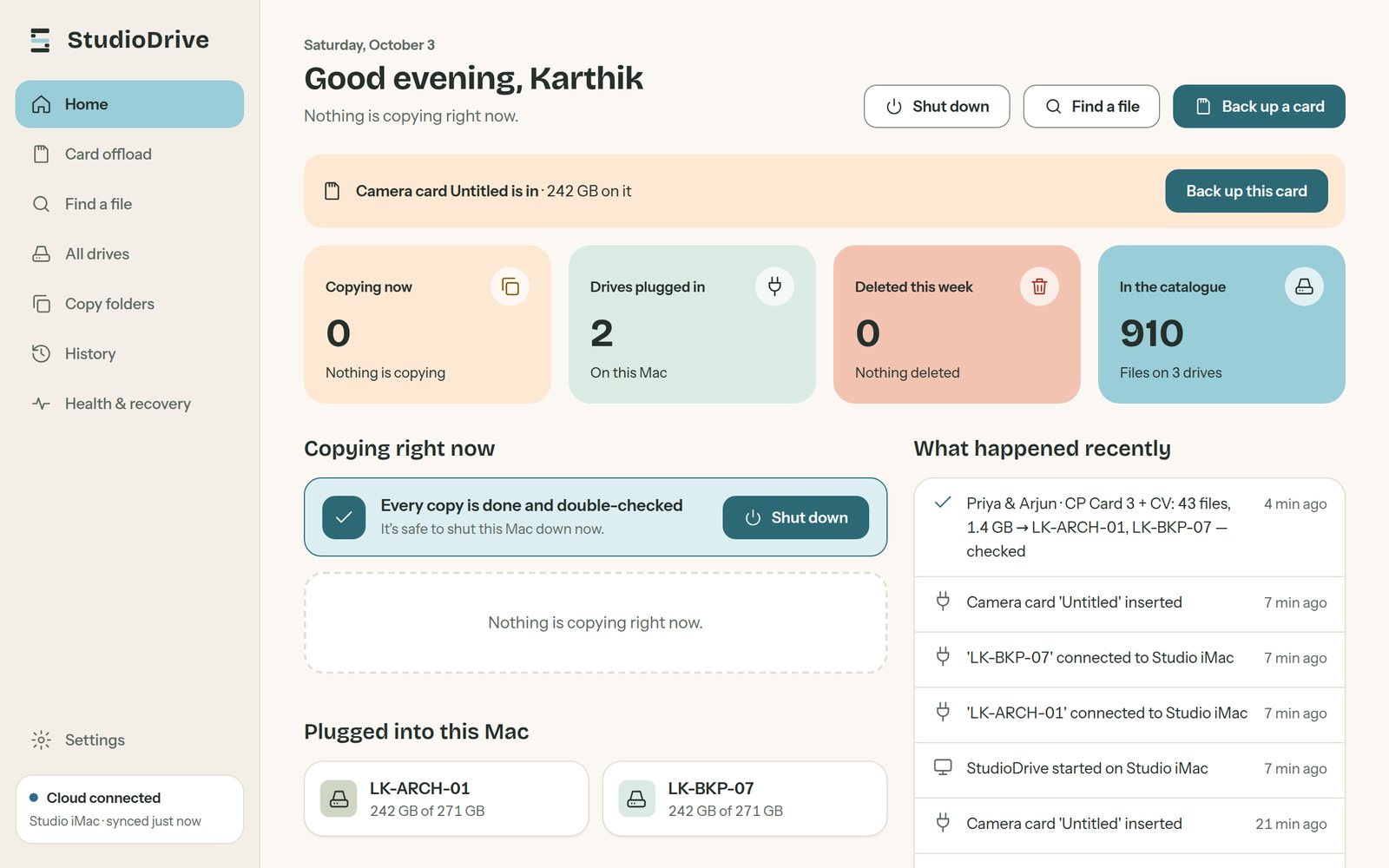
Format the card only when it says Done and double-checked. If a backup stops or fails, don't format the card. Plug everything back in and press Retry in History. It carries on where it stopped.
Folders are made the same way on both drives:
Weddings / 2026-09 September / Priya & Arjun / CP / 2026-09-13 / Card 1
Find a file
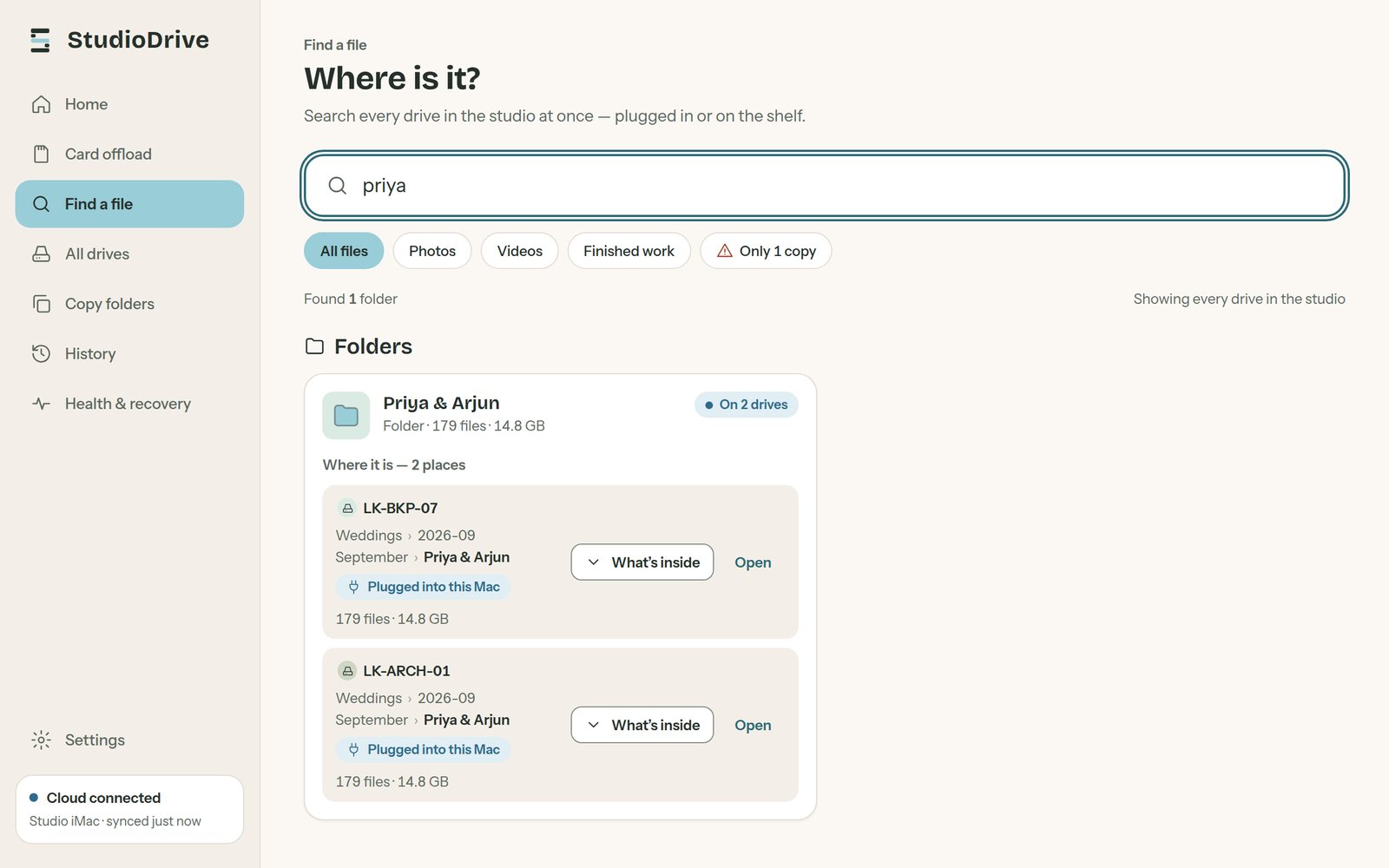
Search every drive in the studio, plugged in or on the shelf.
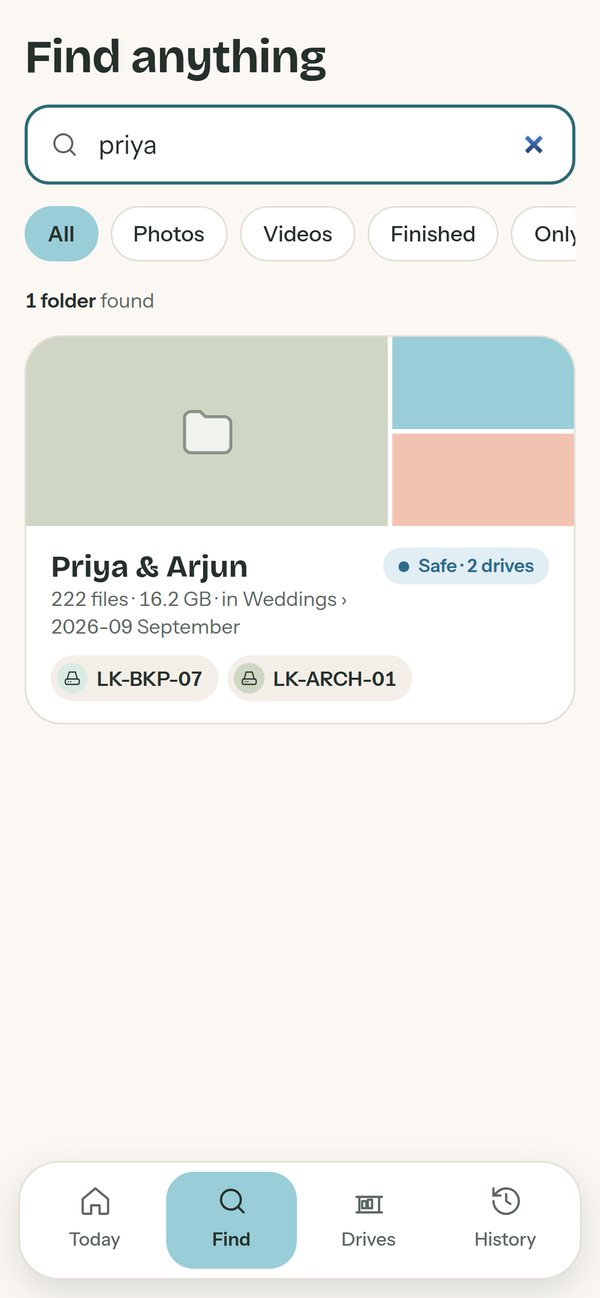
Open Find a file and type any part of a name: the couple, a file number like DSC04412, a month like 2026-09, or a type like .braw. Each result shows which drives it's on, whether they are plugged in, and whether it has two copies or only one.
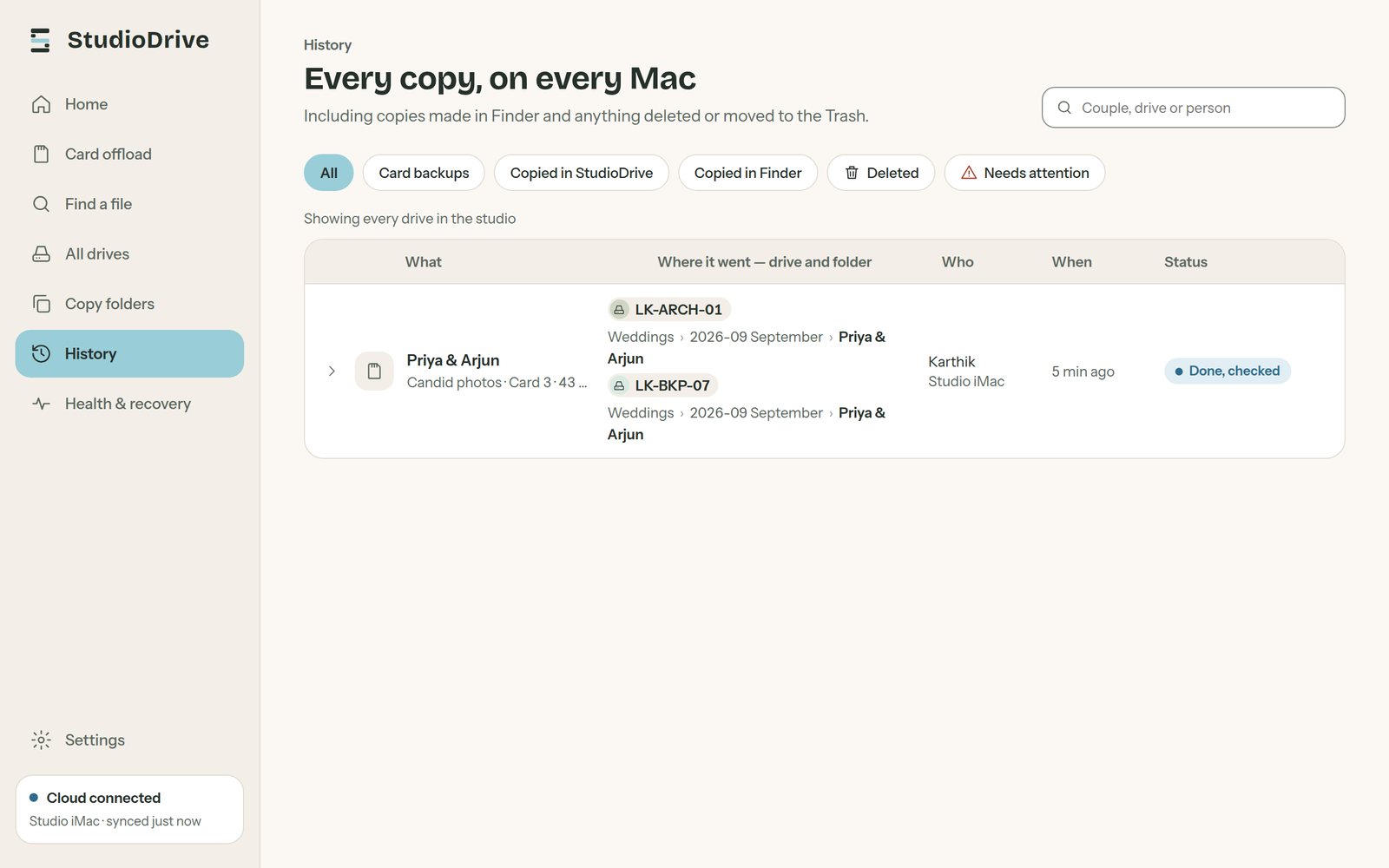
History lists every copy ever made: who copied what, from where, to which drives, and whether it was checked.
Phones and team
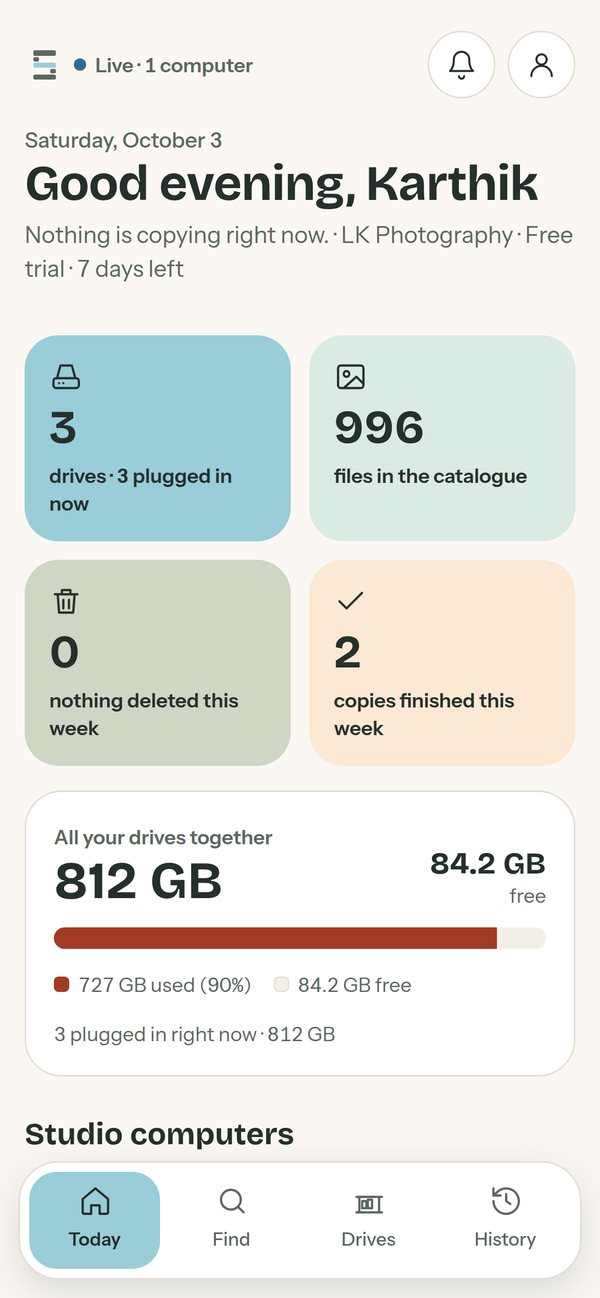
Check backups and find files from anywhere, on mobile data too.
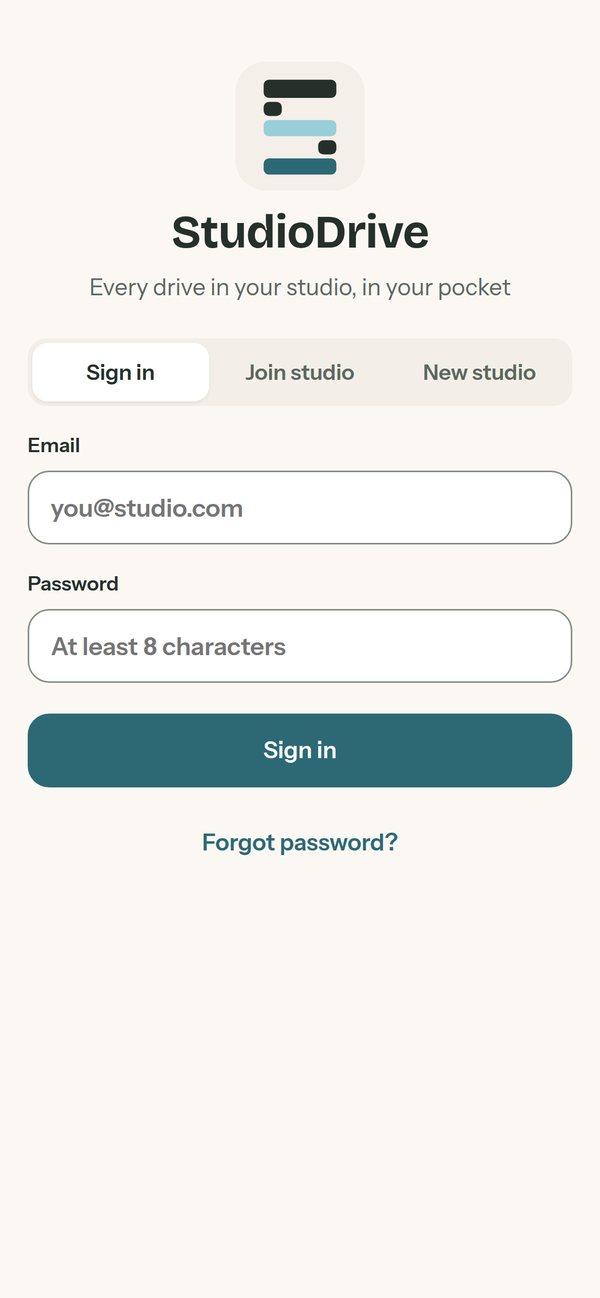
On the Mac, open Settings. Under StudioDrive on your phone, point the phone's camera at the code, or open app.studiodrive.app.
Sign in with the same email and password. Team mates without an account choose Join studio and enter the studio code.
iPhone: tap Share → Add to Home Screen. Android: tap ⋮ → Add to Home screen. It now opens like an app.
Allow alerts to hear when a backup finishes or fails.
Cloud sync
Each Mac sends the list of files and copies to your studio's cloud, so every Mac and phone sees the same thing.
The box at the bottom left of the app always shows how this Mac is doing.
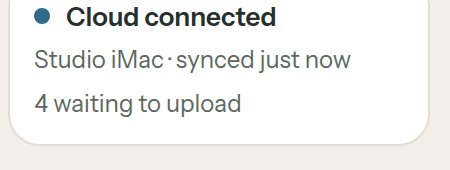
| It says | What it means |
|---|---|
| Cloud connected | All good. "Synced just now" is the last time it sent changes. |
| … waiting to upload | Changes are queued and going up. Normal after a big backup or a first scan. Leave the Mac on. |
| No internet — will retry | Nothing is lost: everything waits on the Mac and goes up when the connection is back. Backups still work offline. |
| Uploads paused | The trial or subscription has ended. Write to us to switch your plan on (step 11) and uploads carry on. |
| Not signed in | Go to Settings → Your StudioDrive account and sign in. |
| Cloud problem | Quit and reopen StudioDrive. If it stays, write to us with a screenshot. |
What goes to the cloud: drive names, folder and file names, sizes and dates, and the copy history. What never does: your photos and videos. They stay on your own drives.
Updating StudioDrive
The app checks for a new version every few hours and tells you on the Home screen.

Wait until nothing is copying. Then click Download update. The right file for your Mac downloads.
Quit StudioDrive: click its menu bar icon → Quit.
Open the new
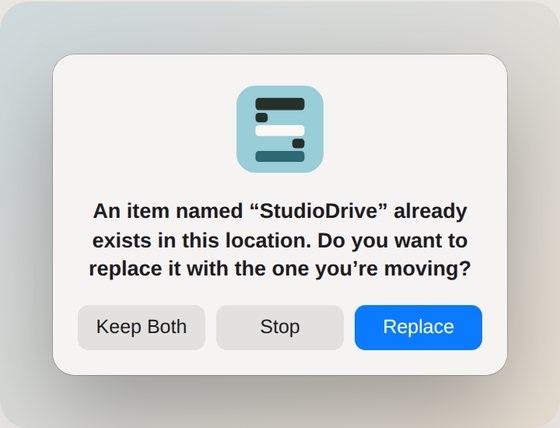
.dmgand drag StudioDrive onto Applications, the same as the first install.macOS asks if you want to replace the old one. Click Replace.
Open StudioDrive again. You stay signed in, and your drives, history and settings are all kept.
After an update, if drives show "Blocked by macOS". macOS sometimes treats the new version as a new app. Open Full Disk Access, select StudioDrive, click − to remove it, then add it again with + as in step 4. macOS may also ask the "Open Anyway" question once more.
The cloud and the phone screens update by themselves. There is nothing to install on phones.
Upgrading to a paid plan
When the 7-day trial ends, switching to a paid plan takes one email.
Write to [email protected] with your studio name, the plan you want, and whether you want to pay monthly or yearly.
We send the payment details. Once it's paid, we switch your studio on from our side.
That's it. There is nothing to type in on your Macs. If a Mac still shows the trial-ended screen, press Check again in Settings.
| Plan | Price |
|---|---|
| Photographer · 2 seats, up to 20 drives | ₹399 a month, or ₹3,999 a year |
| Studio · 5 seats, unlimited drives | ₹799 a month, or ₹7,999 a year |
Your drives, history and settings stay exactly as they are when you move from the trial to a paid plan.
If something is wrong
Most problems are one of these.
| What you see | What to do |
|---|---|
| "StudioDrive" Not Opened | Follow step 2: Privacy & Security → Open Anyway. |
| A drive shows Blocked by macOS, or 0 files | Add StudioDrive to Full Disk Access (step 4), reopen it, then click Scan again on the drive. |
| A drive doesn't appear at all | Check it shows in Finder. If macOS asked about removable volumes and you clicked Don't Allow, turn it on in Privacy & Security → Files and Folders → StudioDrive. |
| Search can't find a file you know is there | Open the drive in All drives and click Re-scan. |
| "Not enough space" | Pick a backup drive with more free space. Half-written files from the failed copy are already cleaned up. |
| A backup stopped halfway | Plug the card and both drives back in. In History, click Retry. It continues into the same Card folder and checks everything. |
| Phone says wrong email or password | Use the email you signed up with. New team mates choose Join studio with the studio code. |
Still stuck?
Send a screenshot of what you see and we'll help you sort it.